
You installed n8n Community Edition on Oracle Cloud. Now, a new version is available. You need to update it without breaking your workflows. This guide gives you clear, practical steps on how to update n8n version for community edition oracle cloud. We will cover the update process, essential pre-update checks, and troubleshooting common issues.
Table of Contents
Why You Must Keep Your n8n Instance Updated
Regular updates are critical. They bring security patches. They fix known bugs. Updates also provide new features and performance improvements. Running an outdated version on your Oracle Cloud server poses risks. Your data and automations could become vulnerable. Staying current ensures stability and access to the latest tools.
Essential Preparation Before You Update
Never update without preparation. This prevents data loss and service interruptions. Follow these steps first.
Back up your n8n database. This is the most important step. Your workflows, credentials, and execution data are stored here. Use your database management tool to create a full backup.
Stop the running n8n service. This ensures all processes are cleanly terminated. It prevents file corruption during the update. Use the systemctl command to stop the service.
Check your current n8n version. Note it down. Also, review the n8n changelog for the target version. Look for breaking changes or specific migration notes.
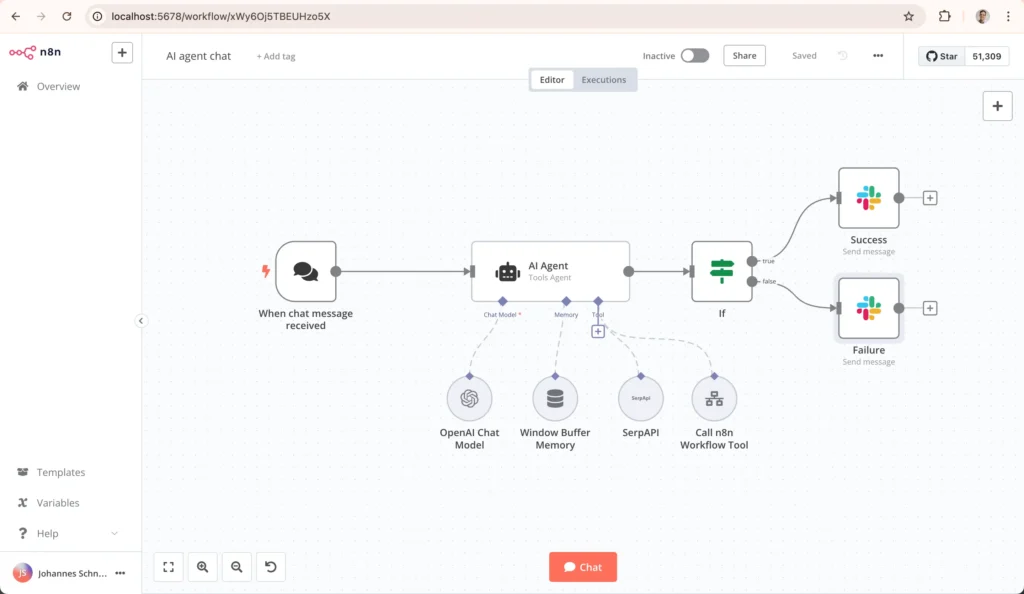
How to Update n8n Version for Community Edition Oracle Cloud Servers
The standard installation method uses Docker. The update process is straightforward. You will pull the new Docker image and restart the container.
First, connect to your Oracle Cloud Instance. Use SSH with your private key. Navigate to the directory containing your docker-compose.yml file.
Edit your docker-compose.yml file. Find the line specifying the n8n image. It will look like image: n8nio/n8n:latest. You can change latest to a specific version tag like image: n8nio/n8n:1.24.0. Using a specific tag is safer than latest.
Pull the new Docker image. Run the command docker-compose pull. This downloads the new image to your server.
Now, recreate and start your container. Run docker-compose up -d. The -d flag runs it in detached mode. This command stops the old container and starts a new one with the updated image.
Verify the update is successful. Check the container logs with docker-compose logs n8n. Then, access your n8n web interface. The version number should be updated on the settings page.
A Direct Method to Update n8n on Oracle Cloud
You can also update with a short series of commands. This method assumes a standard Docker Compose setup.
Here is a practical command sequence. Run these in your terminal after connecting to Oracle Cloud.
cd /path/to/your/n8n
docker-compose down
docker pull n8nio/n8n:latest
docker-compose up -d
The docker-compose down command stops and removes the container. The docker pull command fetches the latest image. Finally, docker-compose up -d recreates the container. Your data persists because it is stored in mounted Docker volumes.
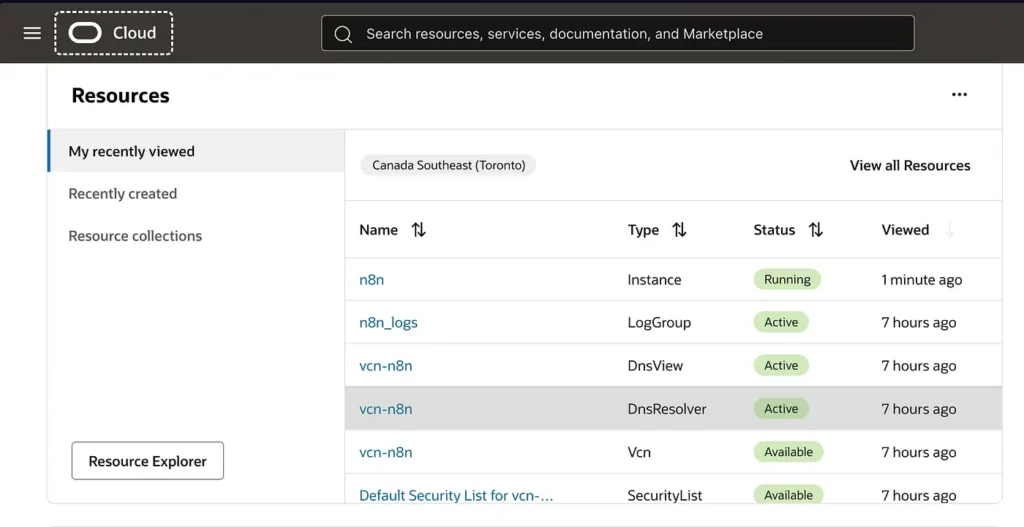
Troubleshooting Common Update Problems
Sometimes, updates do not go smoothly. Here are common issues and their fixes.
The n8n service fails to start after update. Check the container logs immediately. Use docker-compose logs n8n. Look for error messages about database migrations or missing modules. Often, this is due to incomplete volume permissions.
Workflows appear broken or nodes are missing. This can happen with major version jumps. Consult the n8n changelog for that version. You may need to manually adjust node parameters. Your pre-update backup is crucial here for recovery.
High CPU or memory usage after update. New versions can have different resource profiles. Ensure your Oracle Cloud instance meets the updated system requirements. You may need to adjust your Docker Compose file to increase resource limits.
Post-Update Verification Checklist
Do not assume everything works. Actively verify your system.
Log into your n8n web interface. Confirm the new version number is displayed. Execute a simple test workflow. Check that your credential storage is intact. Review a few complex workflows for any formatting issues.
Monitor the system logs for errors. Do this for the first few hours. Ensure scheduled triggers are firing as expected. Validate integrations with critical apps like Oracle Database, if used.
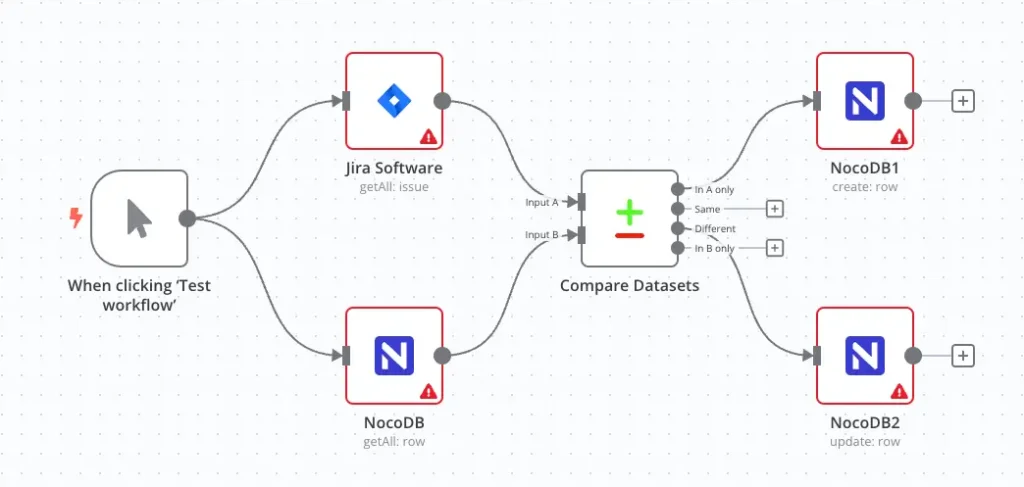
Maintaining Your n8n Instance on Oracle Cloud
Updating is part of ongoing maintenance. Schedule regular update checks. Subscribe to n8n release notifications on GitHub. Always test major updates in a staging environment if possible.
Keep your Oracle Cloud system patched. Update the underlying OS with sudo apt update && sudo apt upgrade. Maintain your database software separately. This holistic approach keeps your entire automation server secure and reliable.
FAQ
How often should I update n8n?
Check for updates monthly. Prioritize security updates immediately. For feature updates, plan them during maintenance windows.
Will updating delete my workflows?
No. Your workflows are stored in your database or file system volume. The update process does not touch this data if done correctly. Always have a backup.
What if I used the npm installation method?
The npm method is less common. It involves stopping n8n, running npm update -g n8n, and restarting. Docker is the recommended and simpler method on Oracle Cloud.
Can I rollback an n8n update?
Yes. If you used a specific version tag, edit your docker-compose.yml to point to the old tag. Run docker-compose up -d again. You must restore your database backup if the new version ran a migration.
Conclusion
Updating your n8n Community Edition on Oracle Cloud is a manageable process. The key steps are backing up your data, pulling the new Docker image, and restarting the container. By following the structured approach outlined in this guide on how to update n8n version for community edition oracle cloud, you can ensure a smooth transition. Regular updates keep your automation platform secure, stable, and feature-rich. Start your next update with confidence.